Adsense
Adsense is a feature that allows you to add ads to your website. You can add ads to your website by adding the following code to your website.
Go to you Settings > Integration Settings > Ads, Now you can see the table of adsense settings. You can add multiple types of ads to your website.
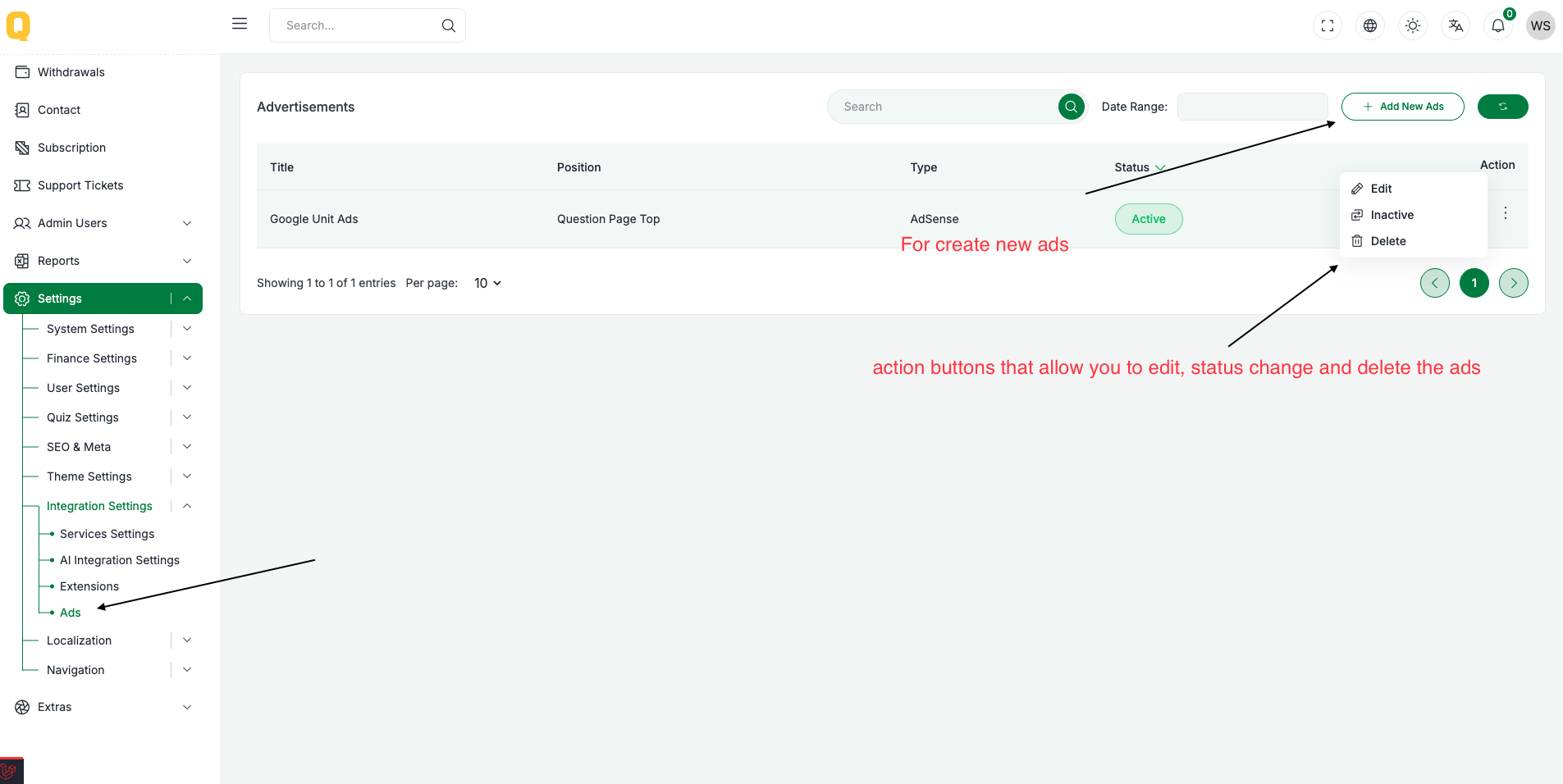
- Custom Ads: You can add custom ads to your website by adding using by custom code or image ads.
- Google Adsense: You can add Google Adsense to your website by adding the following code to your website.
- Image Ads: You can add image ads to your website by adding the following code to your website.
You can place add on Five position.
Position
- Header: Add can show on header section if you select
Headerposition. - Custom Section: Also we added a custom section that allow you to add ads on any section of your website.
- Question Page Top: Add can show on question page top section if you select
Question Page Topposition. - Question Page Bottom: Add can show on question page bottom section if you select
Question Page Bottomposition. - Question Page Center: Add can show on question page center section if you select
Question Page Centerposition.
You can create an ads by clicking on Create Ads button on top of the right corner.
Fields
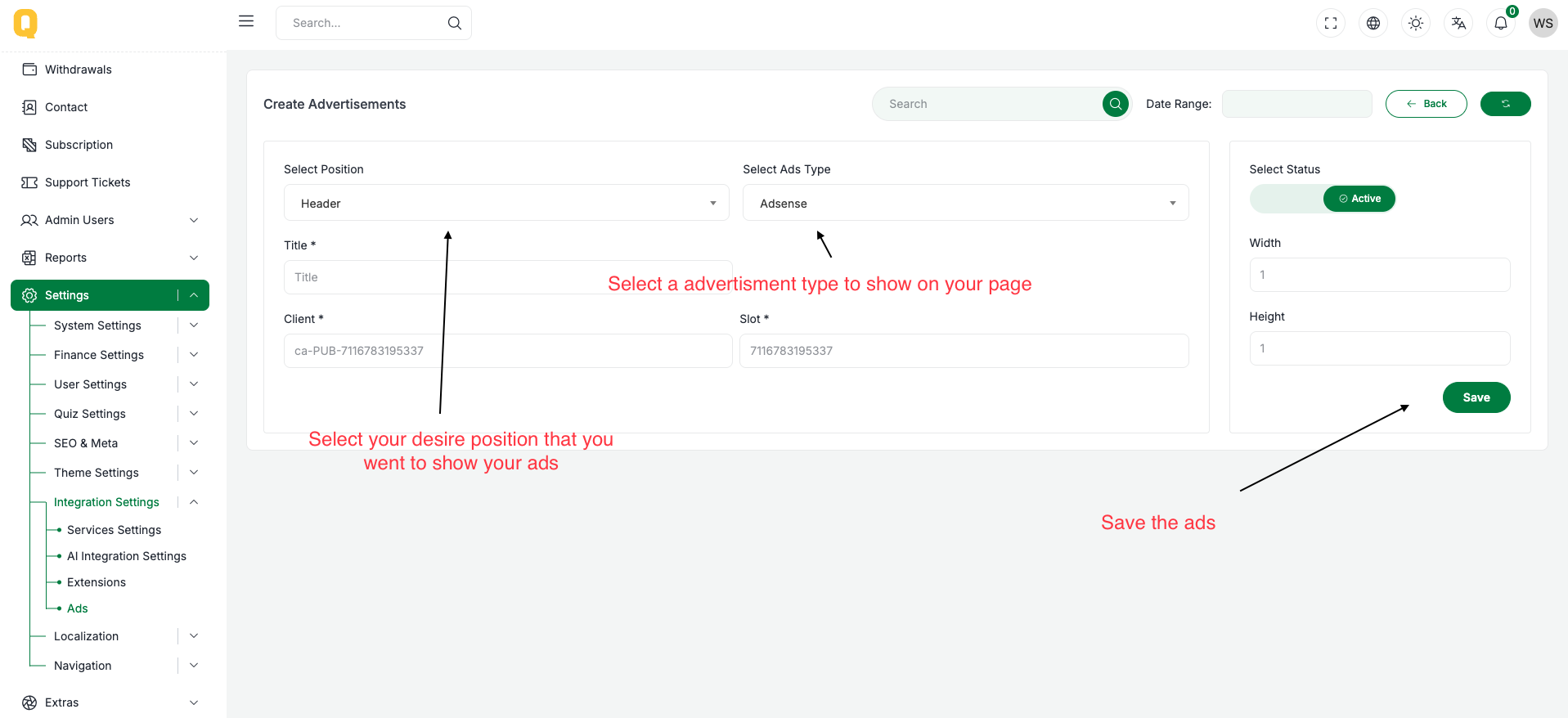
- Position: Select the position where you want to add the ads, it can be
Header,Custom Section,Question Page Top,Question Page Bottom,Question Page Center. (Required) - Type: Select the type of ads you want to add, it can be
Custom Ads,Google Adsense,Image Ads. (Required) - Title: Enter the title of the ads. (Required)
- Code: Enter the code of the ads, it can be HTML code. (Required for Custom Ads)
- Client: Enter the client ID of the Google Adsense . (Required for Google Adsense)
- Slot: Enter the slot ID of the Google Adsense. (Required for Google Adsense)
- Image: Enter the image URL of the image ads. (Required for Image Ads)
- Width: Enter the width of the ads. (Optional for Image Ads)
- Height: Enter the height of the ads. (Optional for Image Ads)
How do you get the client ID and slot ID of Google Adsense?
Google
- Go to Google Adsense
- Create an account if you don't have one.
- Click on
Get Startedbutton. - Add your domain to enable adsense.

- Click on
Create Ad Unitbutton.
- Select the type of ad you want to create.
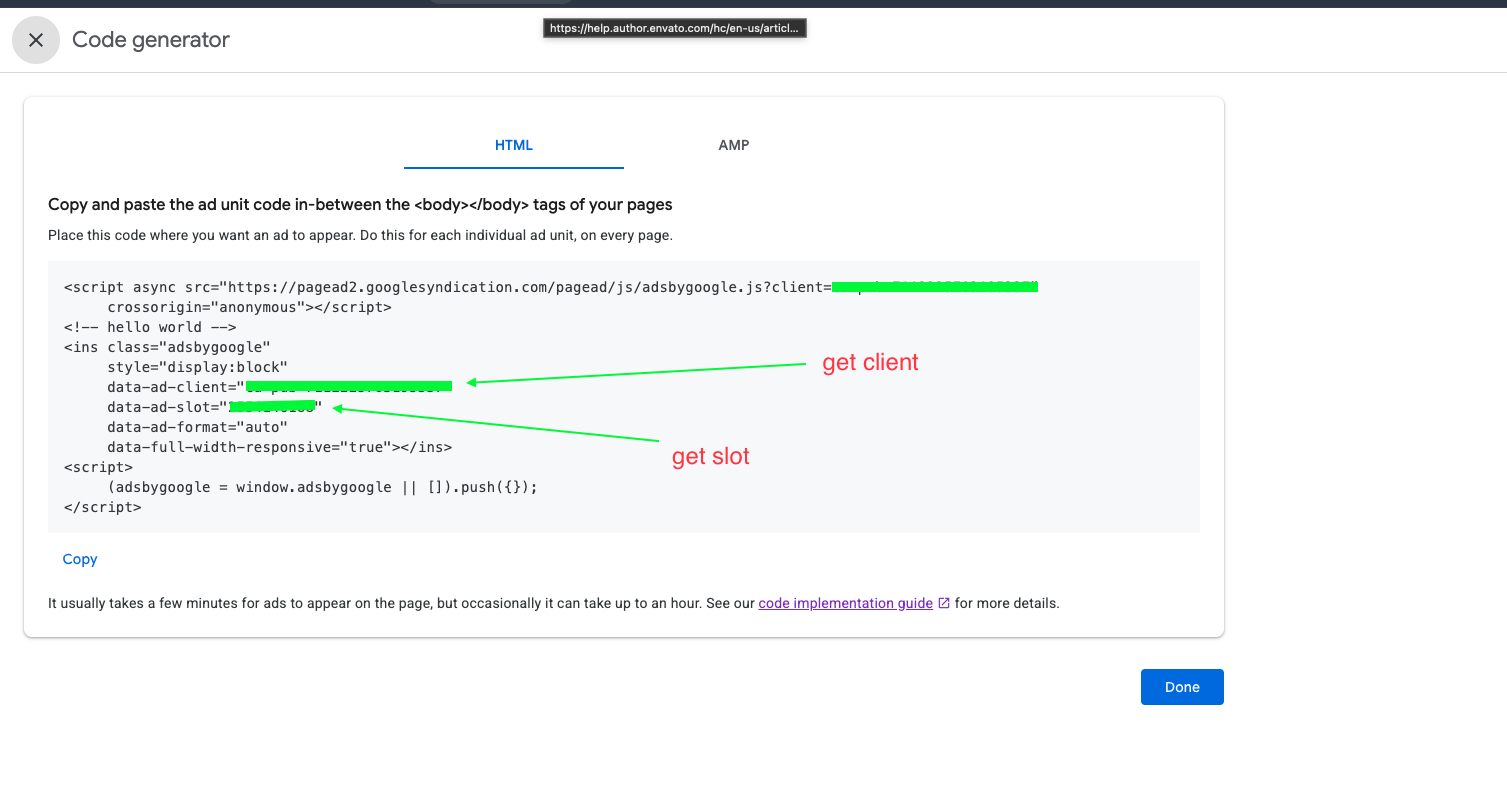
- After creating the ad unit, you will see the client ID as ca-pub- and slot ID as data-ad-slot.
- Copy the client ID and slot ID and paste it in the form.