Troubleshooting
Before see all troubleshooting please clear cache, config etc in admin panel and check frontend
This section helps you fix common issues you may face after installing Quizix, without needing advanced technical knowledge.
1. Website Shows Blank Page or Error
What this means:
The application is installed, but some basic setup is missing.
What to do:
- Make sure you completed all installation steps
- Confirm that the
.envfile exists on your server - Ask your hosting provider to check file permissions for:
storagebootstrap/cache
If you are using shared hosting (cPanel), this is very common and easily fixed by support.
2. Database Connection Error
What this means:
Quizix cannot connect to your database.
What to check:
- Database name
- Database username
- Database password
What to do:
- Open your
.envfile - Make sure the database details match exactly with your hosting database settings
- Ensure the database is already created
If unsure, contact your hosting provider and ask them to verify database access.
3. Admin Changes Not Showing on Website
Example issues:
- Quiz settings not updating
- Payment settings not reflecting
- Content appears old
Why this happens:
Quizix uses modern frontend caching for better performance.
What to do:
- Refresh your browser (Ctrl + F5)
- Clear your browser cache
- Clear your browser cache (Ctrl + F5)
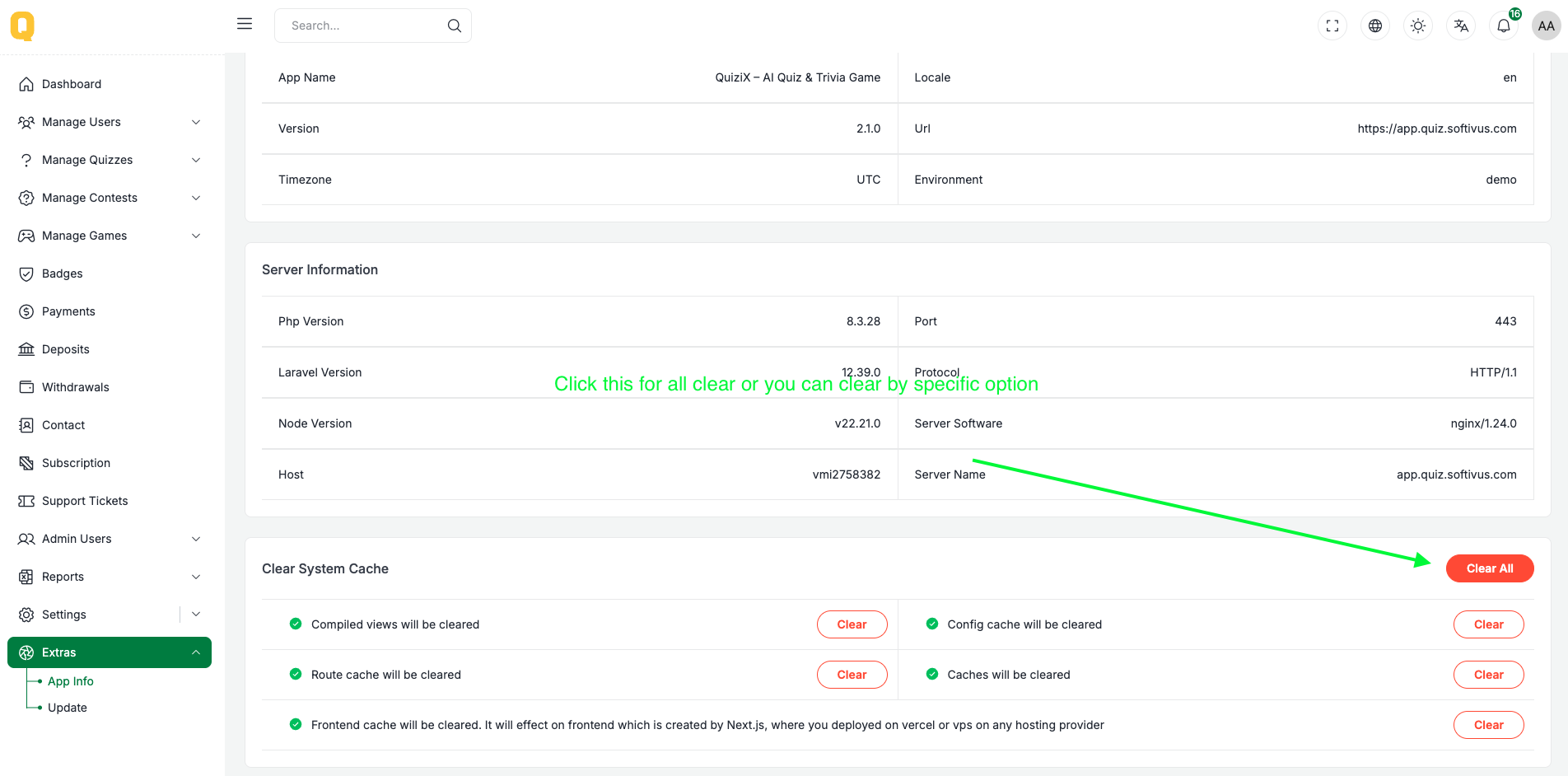
- Go to your Admin Panel
- Navigate to Extra → Info
- Click on Clear Cache or Frontend Clear Cache
- This will clear the frontend cache
(Works only for Standalone Client installations)
- Restart the frontend server (if applicable)
- If hosted on Vercel or similar, redeploy the frontend (If applicable)
This is not a bug, it’s normal behavior for modern web applications.
4. Images or Uploaded Files Not Showing
What this means:
The server is not properly linked to uploaded files.
What to do:
- Ensure the
public/storagefolder exists - If using shared hosting, ask support to create a storage symlink
- From Admin just run on browser
YOUR_WebsiteLink/admin/storage-linkto create the symlink
⚠️ Important:
Some hosting providers do not allow symlinks. So you may have to contact them directly to set up the symlink.
This is a very common setup step and hosting support can do it for you.
5. Payment Gateway Not Working
Common reasons:
- Incorrect payment credentials
- Using live credentials in test mode (or vice versa)
- Callback or webhook URL not set
What to do:
- Double-check payment keys in Admin Panel
- Ensure payment mode matches your credentials
- Confirm callback/webhook URLs are added correctly
Test payments only after saving all settings.
6. Emails Not Sending
What this means:
Email service is not configured or blocked by hosting.
What to do:
- Check email settings in Admin Panel
- Use SMTP instead of default mail
- Ask hosting support if outgoing mail is blocked
This depends on hosting configuration, not Quizix itself.
7. reCAPTCHA Not Working or Not Updating
Example issues:
- reCAPTCHA enabled in admin but not showing on frontend
- reCAPTCHA keys changed but old keys still used
- Form submits without reCAPTCHA
Why this happens:
Frontend caching or incorrect site/domain configuration.
What to do:
- Make sure the reCAPTCHA Site Key and Secret Key are correct
- Confirm the domain is added in Google reCAPTCHA settings
- Clear your browser cache (Ctrl + F5)
- Go to your Admin Panel
- Navigate to Extra → Info
- Click on Clear Cache or Frontend Clear Cache
- This will clear the frontend cache
(Works only for Standalone Client installations)
- Restart or redeploy the frontend application (if applicable)
If hosted on Vercel or similar services, a redeploy is required after changing keys.
8. Social Login Not Working (Google / Facebook, etc.)
Example issues:
- Social login enabled but buttons do not appear
- Login redirects but fails
- Settings saved but frontend does not change
Why this happens:
Social login requires correct credentials and frontend rebuild.
What to do:
- Verify Client ID and Client Secret are correct
- Ensure the callback/redirect URL is added exactly as required
- Confirm the social app is set to Live (not test mode)
- Clear your browser cache (Ctrl + F5)
- Go to your Admin Panel
- Navigate to Extra → Info
- Click on Clear Cache or Frontend Clear Cache
- This will clear the frontend cache
(Works only for Standalone Client installations)
- Clear browser cache and redeploy frontend (if applicable)
Social login changes usually require a frontend restart to apply.
9. Permission or Access Errors (403 / 404)
What this means:
Server permissions or routing is not set correctly.
What to do:
- Make sure
.htaccessfile exists (for Apache servers) - Ask hosting support to reset folder permissions
- Confirm your domain is pointing to the correct public folder
10. Still Having Issues?
If the problem continues:
- Take screenshots of the error
- Copy the exact error message
- Contact support with clear details
- Visit https://support.pxlaxis.com/
Providing correct information helps resolve issues faster.
✅ Most installation problems are server configuration issues, not software bugs.
Quizix works correctly when installed according to the documentation.